Skip to content


Set it up with ChatGPT, Claude or VS Code in about five minutes, pick the right plan, and know what's safe to hand over to AI.
Last updated: November 24, 2026
Tired of clicking through hPanel on your Hostinger account just to add one DNS record? 😅
The Hostinger Connector lets you skip that. You type what you want in ChatGPT, Claude, VS Code or Cursor, and the AI does it on your Hostinger account. Domains, DNS, email, deploys, even posts inside WordPress.
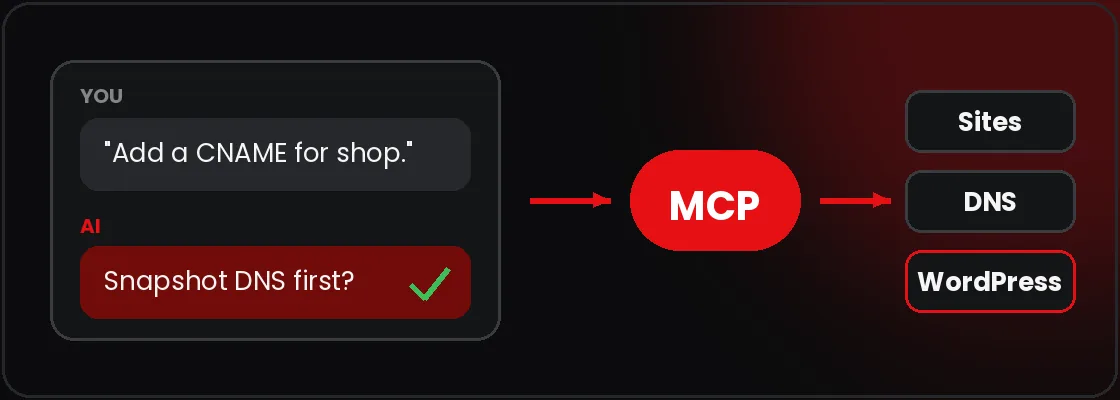
⚡ Quick answer
Hostinger Connector is Hostinger's free, official way to connect AI assistants to your Hostinger account. It uses MCP, so you can manage sites, domains, DNS, email, VPS and WordPress content by typing requests in plain English.
Code: DARREL10
Use code DARREL10 for an extra 10% off any plan. Renewals aren't discounted.
Quick intro if we haven't met: I'm a certified web hosting expert with 10+ years of critiquing, monitoring, and understanding the web hosting business. And our team builds dozens of apps and websites with AI, so we're experts with tools like this, and we know where they trip up.
In this guide, let's break down what the Hostinger Connector is, which plan you need, how to set it up, and what's actually safe to hand over to AI. Let's get started.
What Is the Hostinger Connector (Hostinger MCP)?
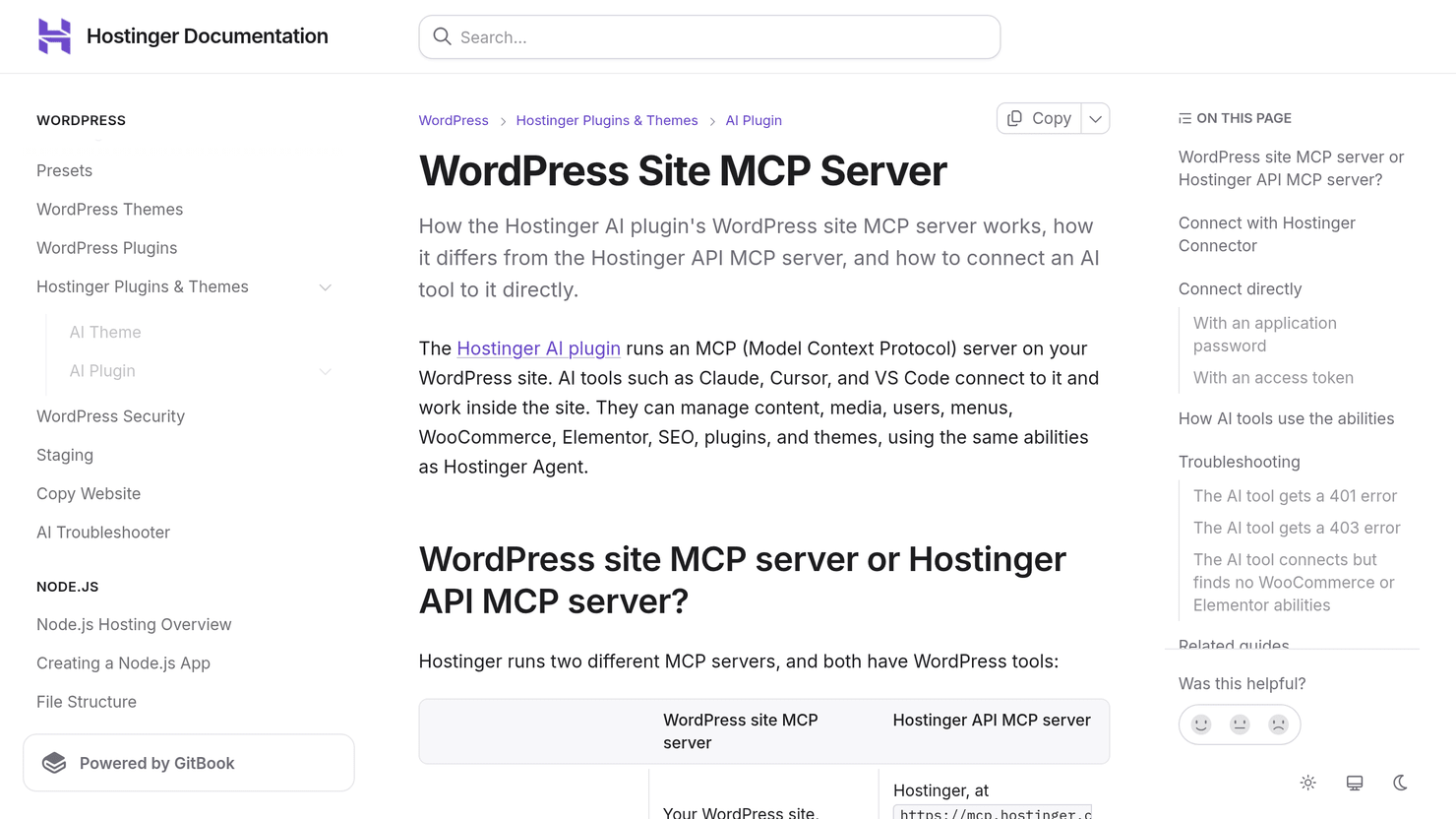
It's built on MCP (Model Context Protocol), an open standard that lets AI apps use outside tools. Hostinger runs the server at https://mcp.hostinger.com, and you sign in through your browser. No API key needed.
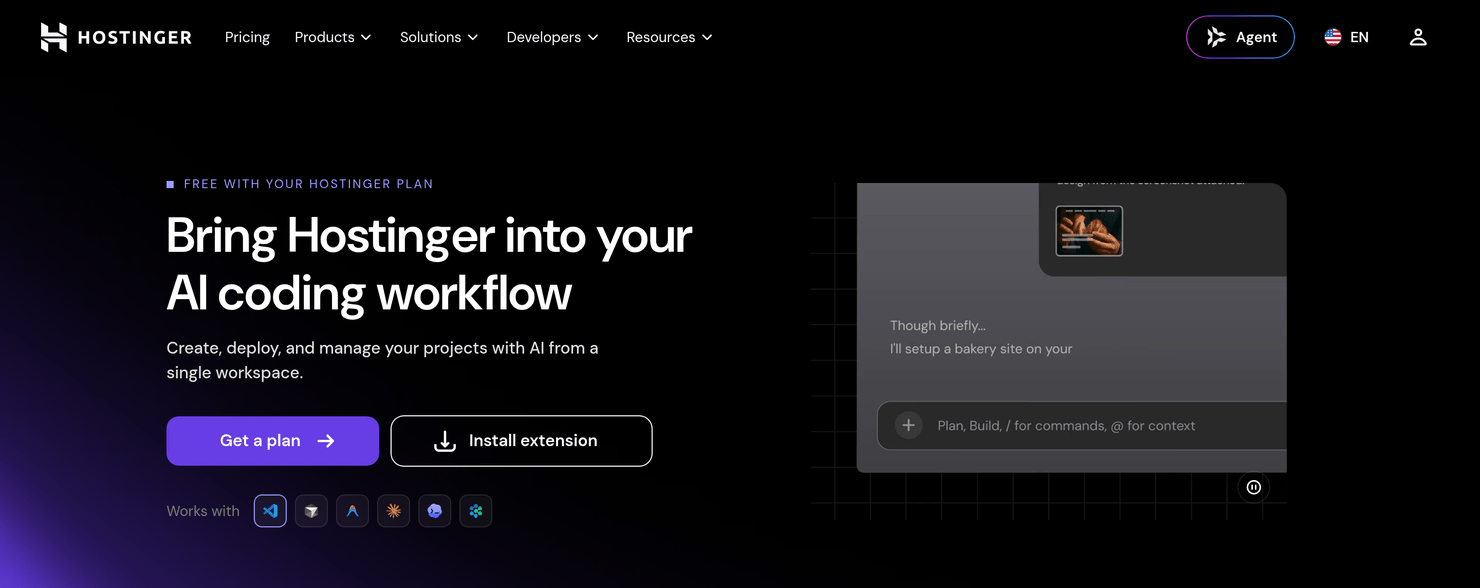
Hostinger's own page sums it up: “Create, deploy, and manage your projects with AI from a single workspace.” And it's free with any Hostinger plan.
Here's the part most guides skip. The Connector works on two layers: your hosting account, and the inside of your WordPress site. Here's what it can manage:
🌐
Websites & deploys
List your sites, deploy static, Node.js or PHP projects, and see what's live.
🔗
Domains & DNS
Check availability, add records, and take a DNS snapshot before changes.
✉️
Email, VPS & billing
Mailboxes, email marketing, VPS and subscriptions, from one chat.
📝
Inside WordPress
Posts, pages, SEO titles, plugins, WooCommerce and Elementor, through the free Hostinger AI plugin.
The account layer works on any active plan, even when a site is down. The WordPress layer needs the site online and the Hostinger AI plugin installed. With the Websites group turned on, the Connector links both for you, so it's one sign-in. Hostinger's docs listed 372 tools as of November 15, 2026.
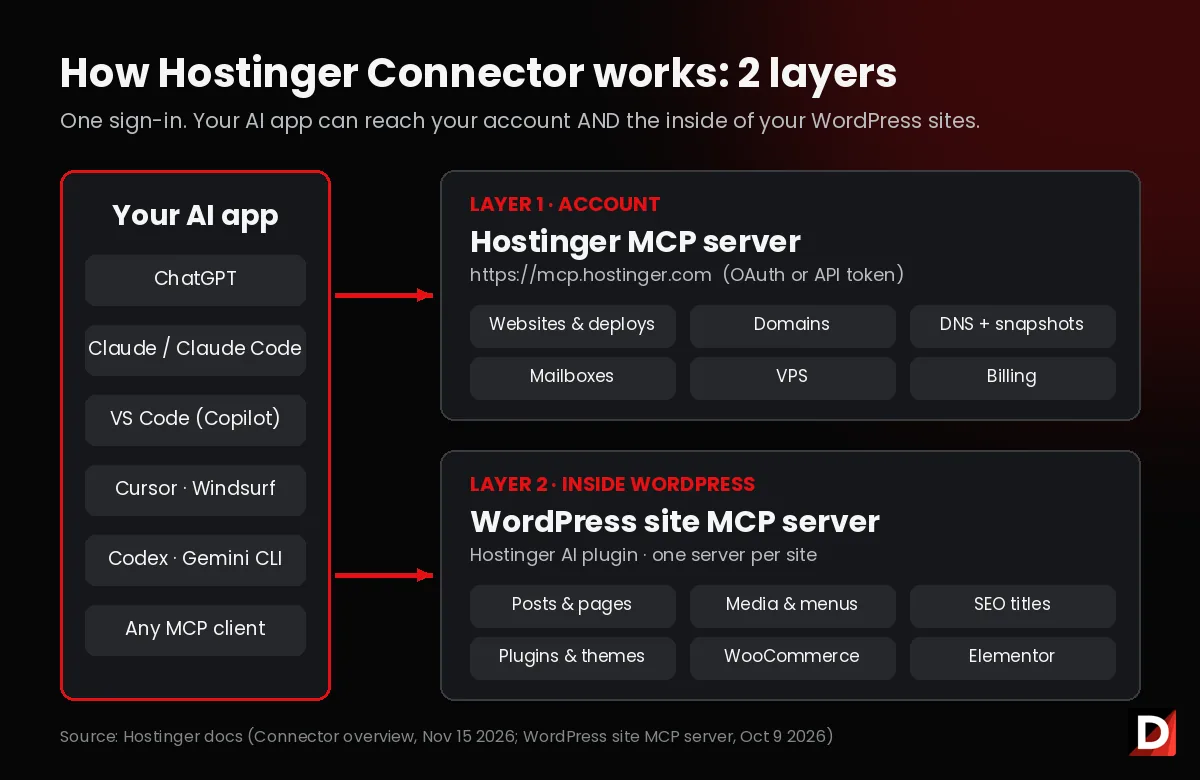
Works with:
ChatGPT
Claude
Claude Code
VS Code
Cursor
Windsurf
Gemini CLI
Plus basically any app that supports MCP. The full list is in Hostinger's Connector docs.
Which Hostinger Plan Do You Need?
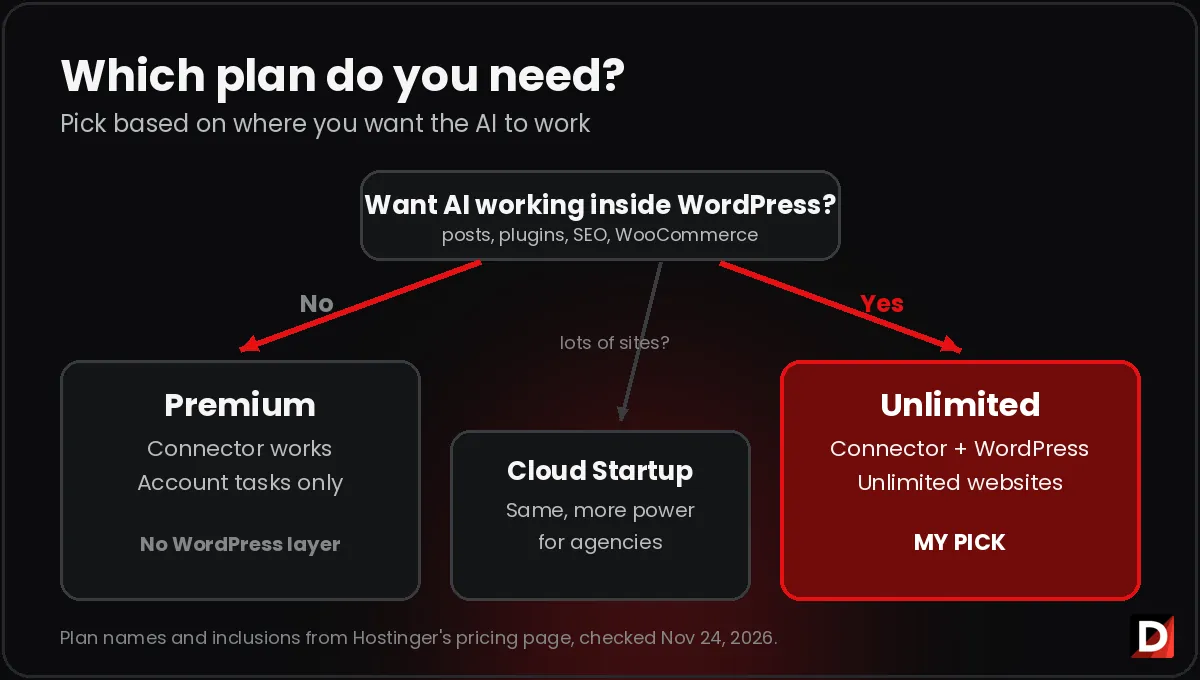
The Connector itself is free and works on any active Hostinger plan, Premium included.
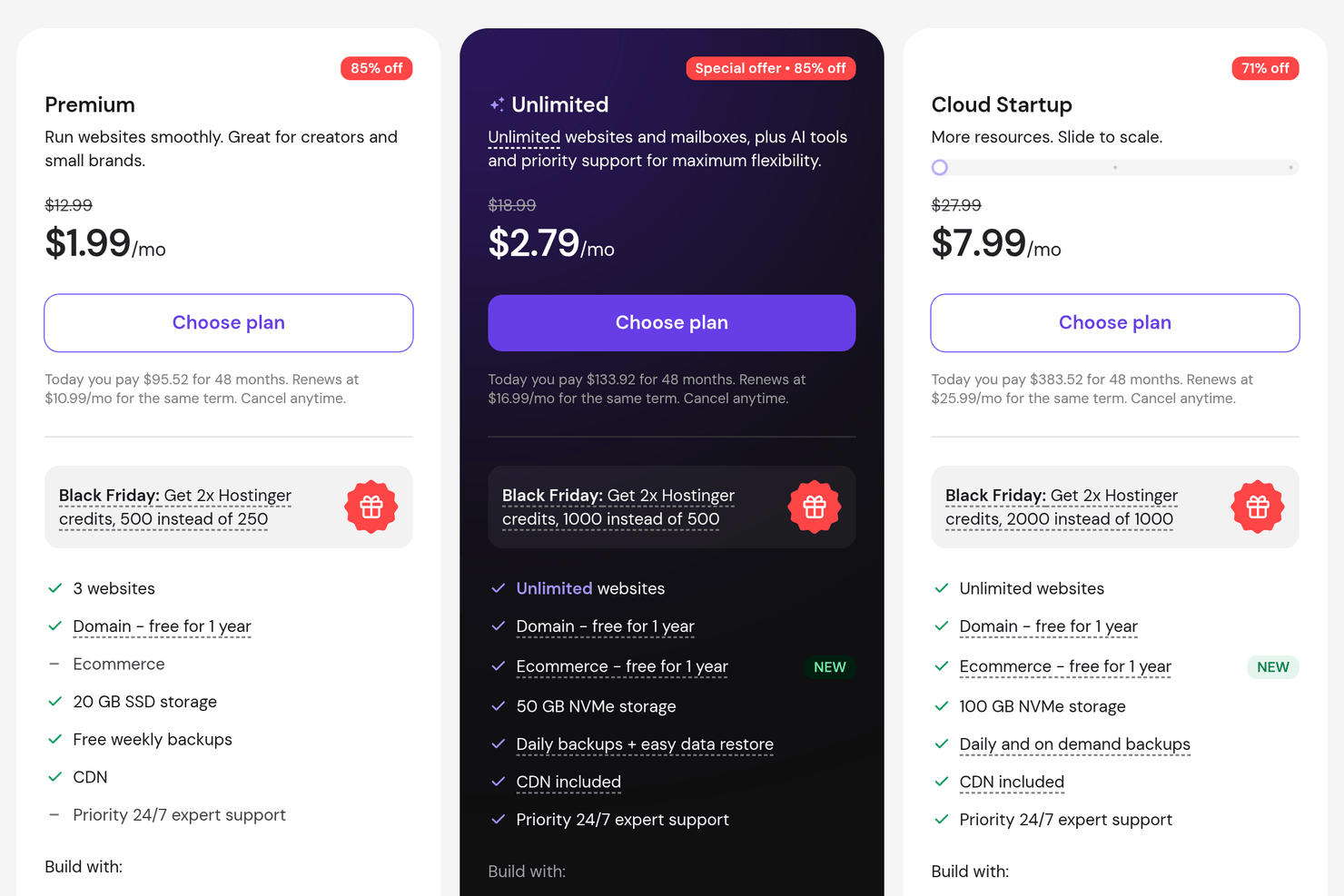
But if you want the AI working inside WordPress, you need the Hostinger AI plugin. Hostinger's pricing page includes it (“AI tools for WordPress”) on Unlimited and Cloud Startup, not Premium. (Hostinger's docs still call those plans “Business and Cloud”, the old names.) So for most WordPress folks, Unlimited is the sweet spot.
🔥 Black Friday deal
★ My pick
Hostinger Unlimited
Best for WordPress sites: it includes the AI tools that let the Connector work inside WordPress.
$2.51/mo
$18.99/mo · 87% off with DARREL10
Unlimited websites
50 GB NVMe
Daily backups
Free domain (1 yr)
AI tools for WordPress
Code: DARREL10
$120.48 upfront for 48 months with DARREL10 applied on my link. Renews at $16.99/mo. Black Friday: 2x Hostinger credits (1,000 instead of 500). 30-day money-back guarantee. Prices checked Nov 24, 2026 on Hostinger's pricing page.
Don't need AI inside WordPress? Premium is $1.79/mo with DARREL10, but it skips the WordPress layer. If you run a bunch of client sites, Cloud Startup ($7.19/mo) gives you more power. My Hostinger coupon page has the DARREL10 details for every plan.
Don't have a WordPress site on Hostinger yet? Here's my full walkthrough, from signup to a live site:
How to Set Up the Hostinger Connector
Pick the app you already use. You only need one, and none of them take more than a few clicks.
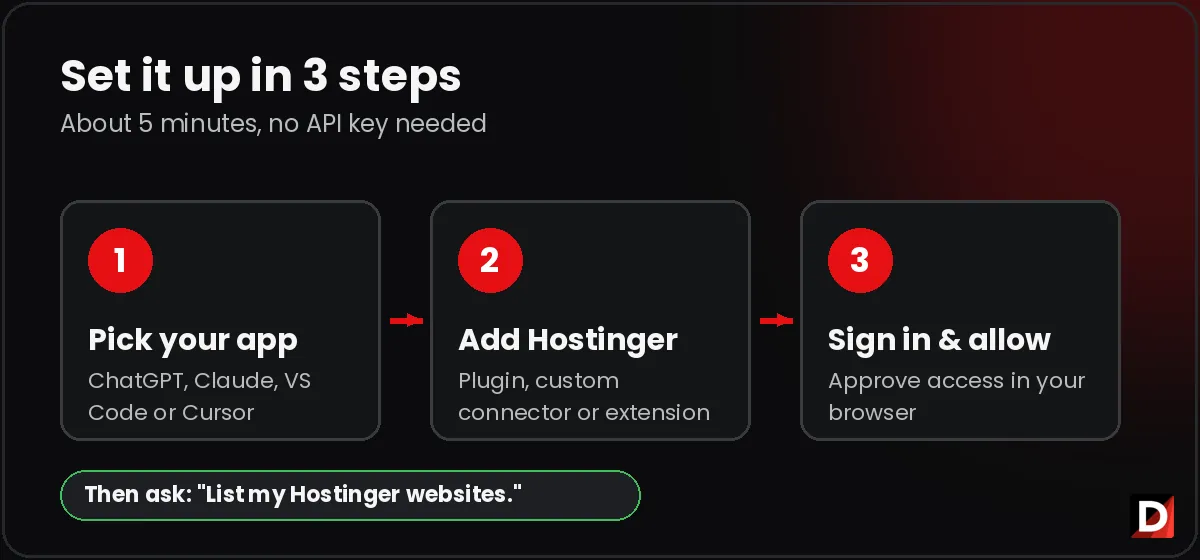

Step 1: Connect Hostinger to ChatGPT
Open the Hostinger Connector plugin page, add it to ChatGPT, then sign in to Hostinger and approve access. You can also start from the Connect with ChatGPT button on the Integrations page in hPanel.
Heads-up: OpenAI says availability “depends on the plugin, your plan, and workspace settings”, so on a work account your admin may need to approve it.

Step 2: Connect Hostinger to Claude
In Claude.ai or Claude Desktop, go to Customize > Connectors, click + Add, then Add custom connector. Name it Hostinger, paste https://mcp.hostinger.com and sign in. Per Claude's help center, free accounts get one custom connector.
Using Claude Code? Run this, approve the browser sign-in, then type /mcp to check it's connected:
claude plugin install hostinger@claude-plugins-official
Step 3: Connect VS Code or Cursor (Hostinger MCP)
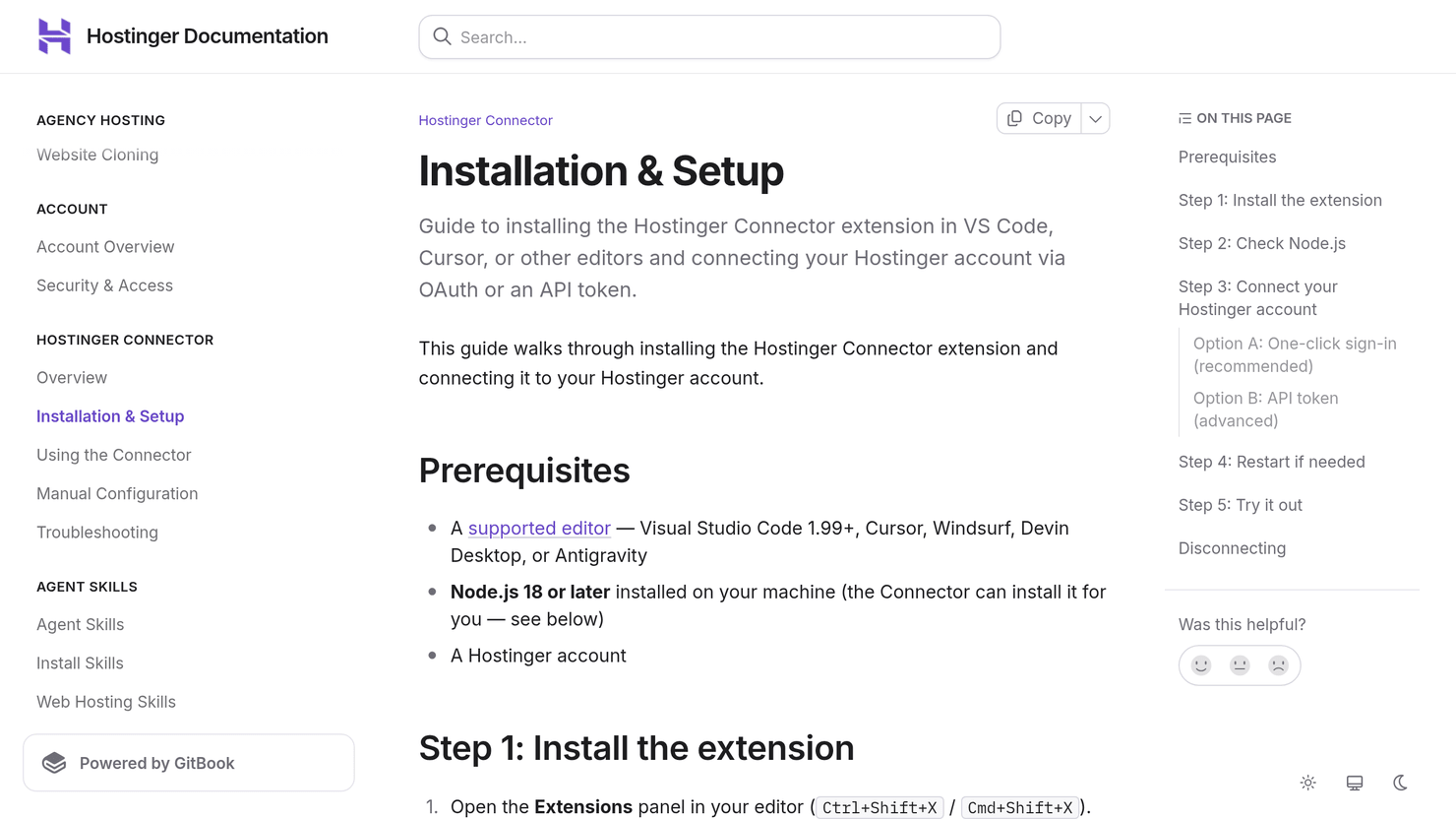
Searched for “hostinger connector vscode”? Install the official Hostinger Connector extension, click the Hostinger icon, then 1-Click Connect and finish the sign-in in your browser within 3 minutes.
If Node.js is missing, the extension offers to install it. In Cursor or Windsurf, fully quit and reopen once.
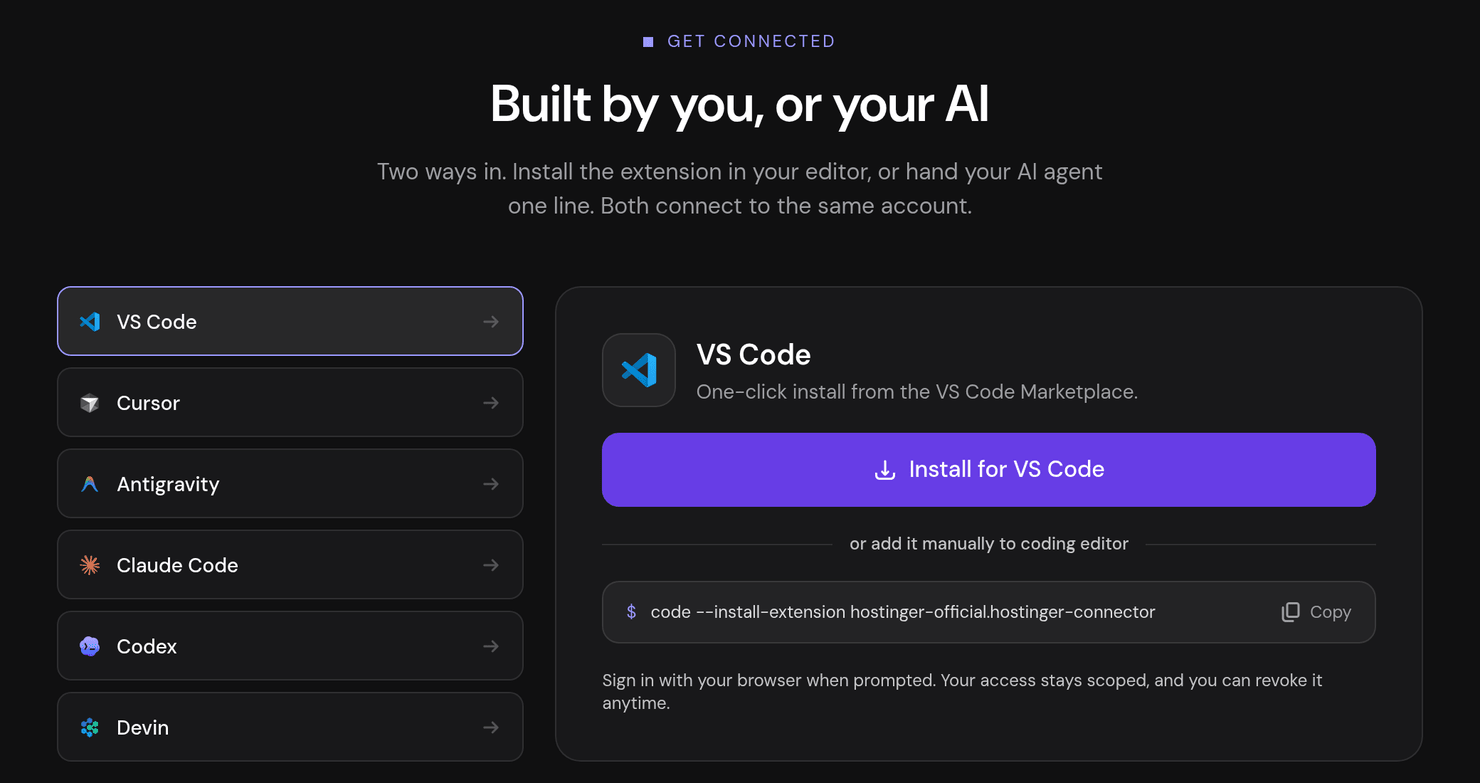
Any other MCP app works too: add https://mcp.hostinger.com as a remote server and sign in. Hostinger's setup guide and manual configuration page have the details.

💡 Pro tip
Before your first prompt, open the Hostinger sidebar and untick Subscriptions & Payments. It's on by default (Hostinger docs), and most of us don't need AI anywhere near billing.
Want to see Claude working inside a WordPress site? I show it in 3 minutes here:
What You Can Ask It to Do
Swap in your own domain and go. These are written for WordPress site owners:
- “List all my Hostinger websites and their status.”
- “Take a snapshot of my DNS zone for mydomain.com, then add a CNAME for shop.mydomain.com.”
- “Is mydomain.dev available? How much is it? Don't buy it.”
- “Which of my subscriptions renew this month?”
- “Which plugins on mydomain.com need updates? List them before updating anything.”
- “Create a draft post titled [title] with an SEO title and meta description. Don't publish it.”
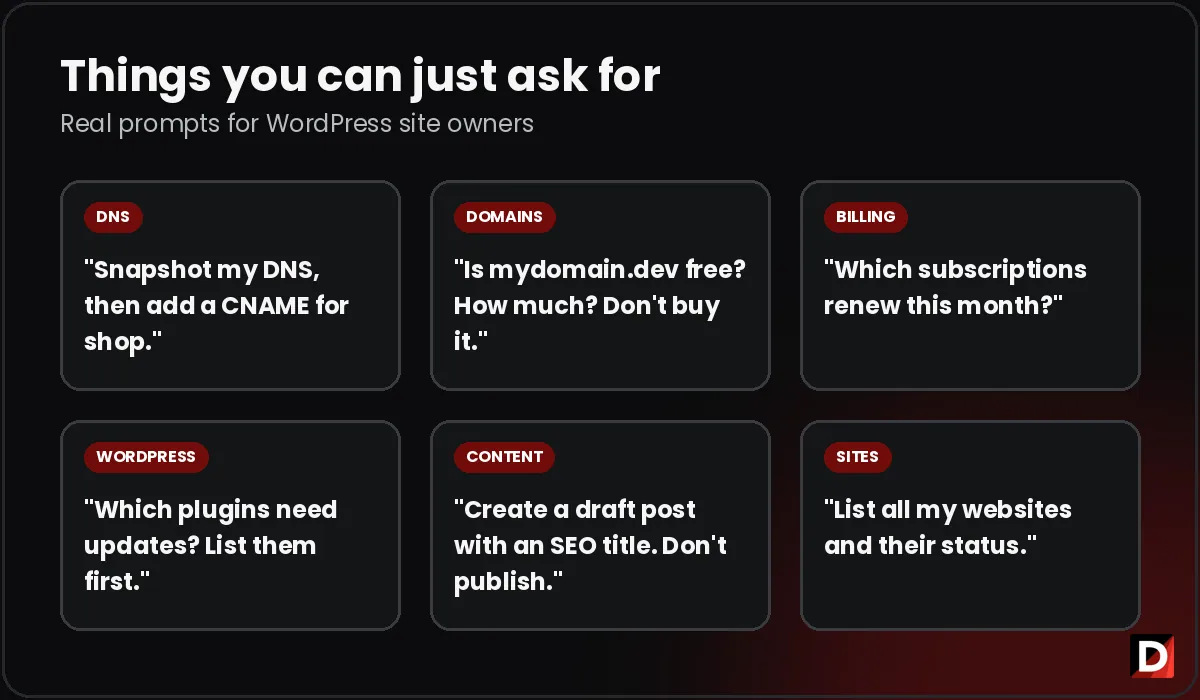
The last two need the WordPress layer, so Unlimited or Cloud Startup. Hostinger's ChatGPT plugin also bundles skills for deploying sites, connecting a domain without losing email records, moving a site from another host, and troubleshooting a site that's down.
What to expect when you try these
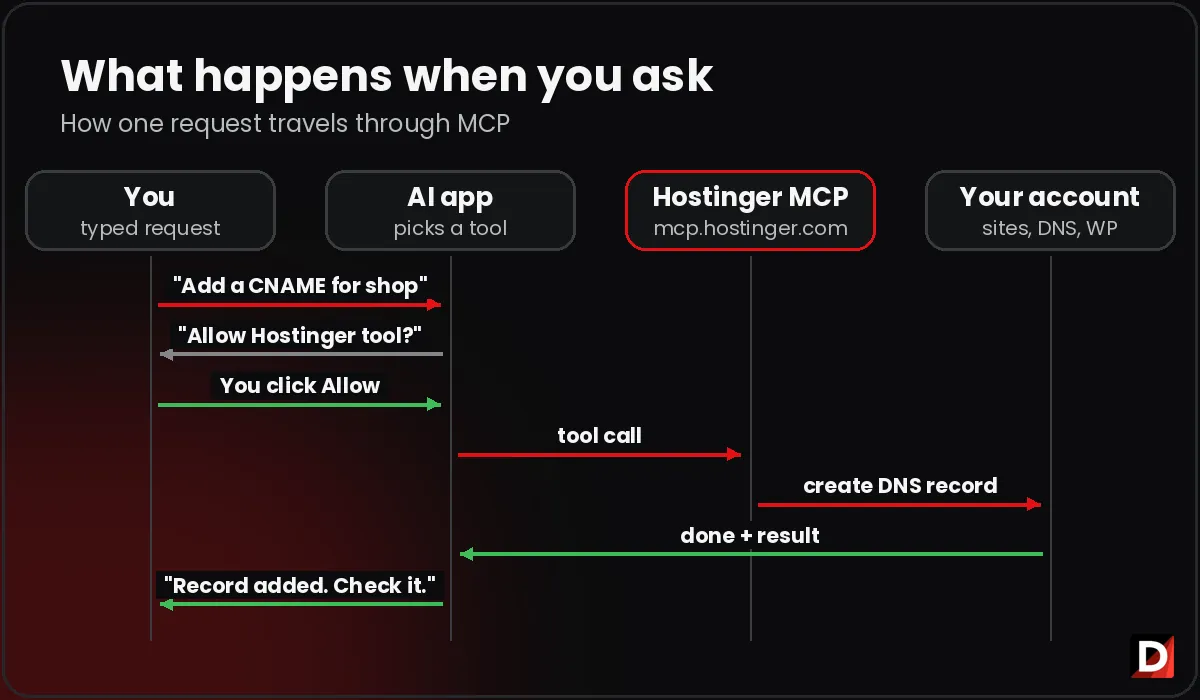
Here's what you'll run into the first time. Depending on your app's settings, it asks you to approve a Hostinger tool before it runs. On the WordPress side it may ask every time, even for read-only stuff like listing posts, because Hostinger marks every WordPress action as one that can change data (WordPress MCP docs).
Anything billable or destructive, like buying a domain, Hostinger says it confirms first, and purchases go on your saved payment method. Honestly, I like that it asks before changing anything. I'd much rather click Allow a few extra times than find out a DNS record disappeared. 😅
It can also only touch what you let it. It sees the product groups you've ticked, and Ecommerce and VPS are off by default, so if those tools are missing, that's why. Inside WordPress it works as the user you connected with, and Elementor or WooCommerce tools only show up when those plugins are active. And when it says something's done, open the site and check. That's just a good habit with any AI tool.
Is the Hostinger Connector Safe?
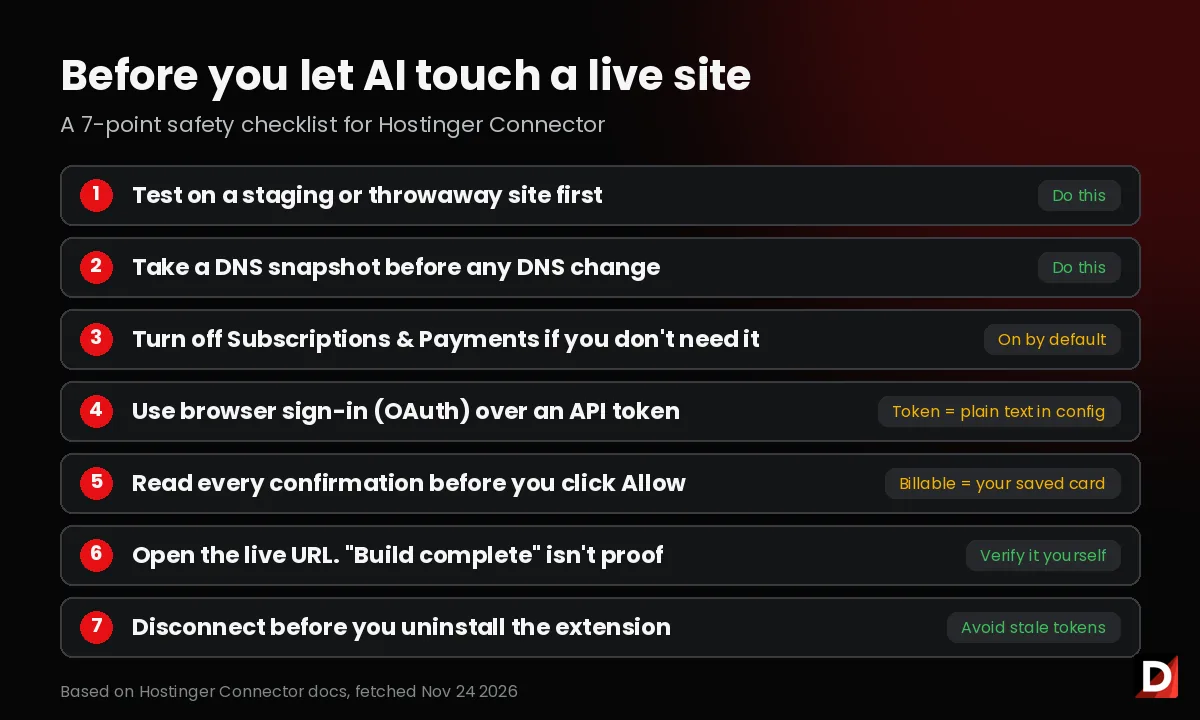
Short answer: yes, if you set it up right. Just remember it works on your real account, so mistakes are real too. Here's why I'd keep a few guardrails:
- Practice on a staging or test site first.
- Ask for a DNS snapshot before any DNS change. A bad record can take your site and email down.
- Read every confirmation before you approve it, especially anything billable.
- Use browser sign-in. If you connect the extension with an API token, Hostinger's docs say it's written in plain text into your editors' config files.
- Open the live URL yourself after changes. “Done” doesn't always mean it works.
“AI is great at the boring hosting chores. Just keep it on a short leash: a test site, a DNS snapshot, and payments turned off.”
— Darrel Wilson
A few limits worth knowing: the WordPress layer won't work on Premium, on a site that's down, or on a site without the Hostinger AI plugin. And static deploys don't run a build step, so build your project before you deploy it.
If you'd rather not use an outside AI app at all, Hostinger Agent does similar things right inside hPanel and WordPress. It's included on Unlimited and Cloud Startup. Prefer a plugin inside your dashboard? Check my list of the best AI plugins for WordPress.
Final Thoughts: Is It Worth It?
Here's my take. I think Hostinger is a great pick for most people getting started with a website, and I recommend it because hPanel is genuinely easy to use. The Connector makes it even easier. Boring stuff like DNS records, email forwarders and plugin checks turns into one sentence in a chat window.
If you're already on Hostinger, set it up on a test site. It's free, so there's nothing to lose. If you're picking a plan, I'd go with Unlimited so you get the WordPress layer too, and use code DARREL10 for the extra 10% off. Just know the lowest prices need a 48-month prepay, and renewals are higher.
⭐ My rating for Hostinger: 4.9/5
👍 Pros
- Free on any active Hostinger plan
- Browser sign-in, no API key to paste
- Works in ChatGPT, Claude, VS Code, Cursor and more
- Reaches inside WordPress, even Elementor and WooCommerce
👎 Cons
- Works on your real account, so mistakes are real
- WordPress layer needs Unlimited or Cloud Startup
- WordPress actions may ask for approval every time
- Hostinger's docs list different Node.js versions for the extension
And the host underneath holds up. In recent independent tests on identical test sites (November 2025 through October 2026), Hostinger's Unlimited plan kept 99.99% uptime over 12 months, with a US time to first byte of 445 ms and 351 ms globally. Those come from independent testing, not my own measurements.
Not on Hostinger? Cloudways and Kinsta both have their own MCP servers for server and site management, and WordPress.com has one on paid plans. For budget WordPress sites, though, Hostinger reaches the furthest because of that WordPress layer. More in my full Hostinger review, or compare every host I recommend in my best web hosting roundup.
Black Friday deal
Try Hostinger Connector free
Extra 10% off any Hostinger plan with code DARREL10. Unlimited starts at $2.51/mo.
Code: DARREL10
Prices checked Nov 24, 2026. Renewals aren't discounted.
Hostinger Connector FAQ
Is Hostinger Connector free?
Yes. The Connector costs nothing and works with any active Hostinger plan. Anything billable, like registering a domain, is charged to your saved payment method, and Hostinger says the assistant asks for confirmation first.
What is the Hostinger MCP server URL?
It's https://mcp.hostinger.com. Add it as a remote MCP server or custom connector in your AI app and sign in through your browser. No install or API key needed.
Which Hostinger plans does it work with?
The Connector works on every active plan, including Premium. The WordPress layer needs the Hostinger AI plugin, which Hostinger's pricing page includes on Unlimited and Cloud Startup but not Premium (as of November 24, 2026).
Does the Hostinger Connector work with Cursor?
Yes. Hostinger's installation and setup docs list Cursor as a supported editor, alongside VS Code 1.99+, Windsurf, Devin Desktop and Antigravity. Install the Hostinger Connector extension, connect your Hostinger account, then fully quit and reopen Cursor once so it picks up the new MCP configuration.
Do I need a Hostinger API key?
No. Browser sign-in is the recommended way. An API token from the API page in hPanel is optional for setups where browser sign-in won't work, and you should treat it like a password.
Can the AI buy things or delete my site?
It can take billable and destructive actions, but Hostinger says it asks first. To be safe, turn off the Subscriptions & Payments group and test on a staging site.

About the author
Darrel Wilson is a certified web hosting expert with more than 10 years of experience, an AI expert with more than 5 years of experience, a developer who understands AI, and a full-time content creator on YouTube covering these topics.
Affiliate disclosure: Some links in this post are affiliate links, including links to Hostinger, Cloudways and Kinsta. If you buy through them, I may earn a commission at no extra cost to you. Coupon code DARREL10 gives an additional 10% off any Hostinger plan. I only recommend tools I think are worth your money.
Hostinger Unlimited
$2.51/mo with code DARREL10
Why this plan
- AI tools for WordPress included (not on Premium)
- Unlimited websites + 50 GB NVMe
- Daily backups + free domain (1 yr)
Black Friday price. Renews at $16.99/mo.